How the Zapier Integration Works
Zapier connects REXPT with external apps and lets you automate workflows using Zaps. In this example, a completed REXPT call starts the workflow and the selected Action sends the call information to the destination you configure.
Flow: REXPT Call Ends → Zapier Trigger → Action App → Mapped REXPT Data
Start the Zapier Setup
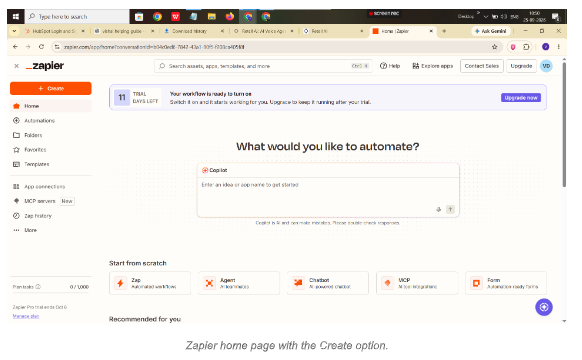
Step 1 — Open Zapier and create a Zap
Sign in to Zapier and select Create → Zap to start a new workflow.
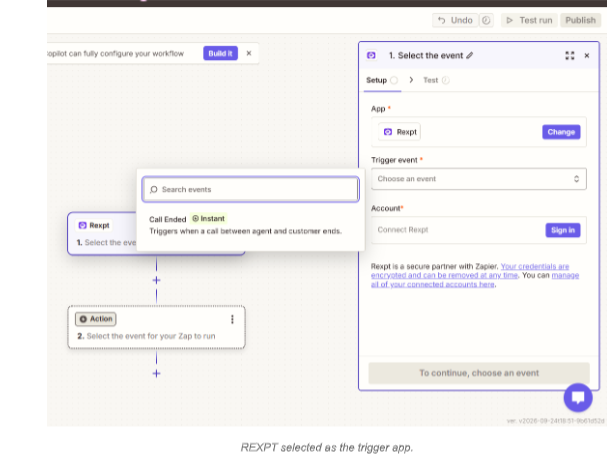
Step 2 — Select REXPT as the trigger app
In the Trigger step, search for and select REXPT.
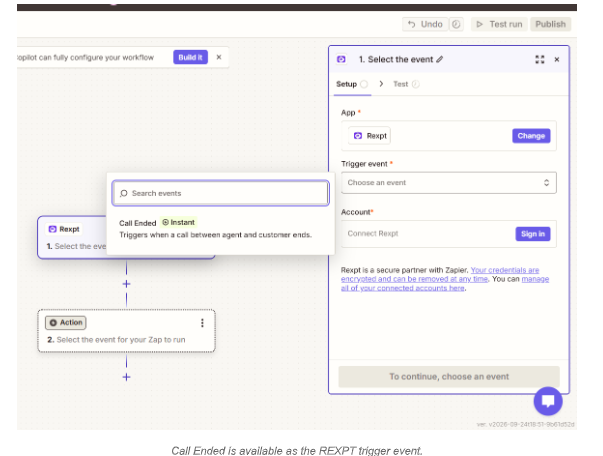
Step 3 — Select the trigger event
Open Trigger event and select Call Ended. This event starts the Zap when a REXPT call ends.
Connect Your REXPT Account
Step 1 — Sign in to REXPT
In the Account field, click Sign in to connect the REXPT account that will provide the call data.
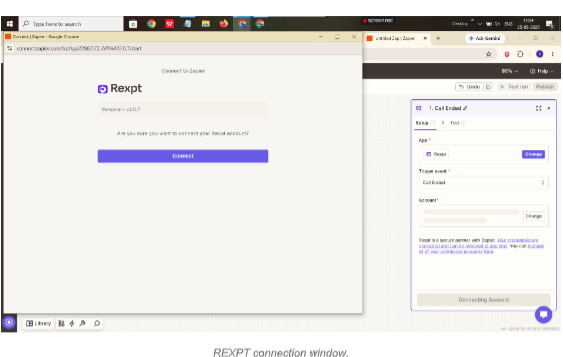
Step 2 — Complete REXPT authentication
Continue with the account associated with REXPT. If a REXPT account does not already exist, complete the REXPT signup/onboarding first, then connect it to Zapier.
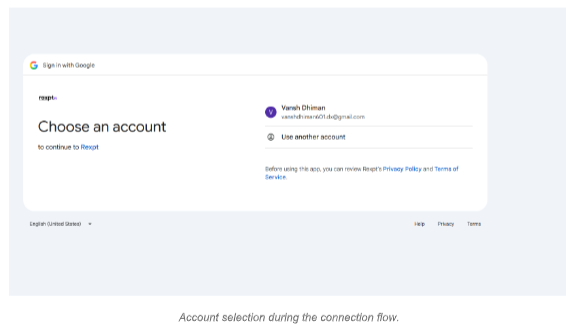
Step 3 — Confirm the connected account
Return to the Zapier editor and verify that the connected REXPT account is shown in the Account field.
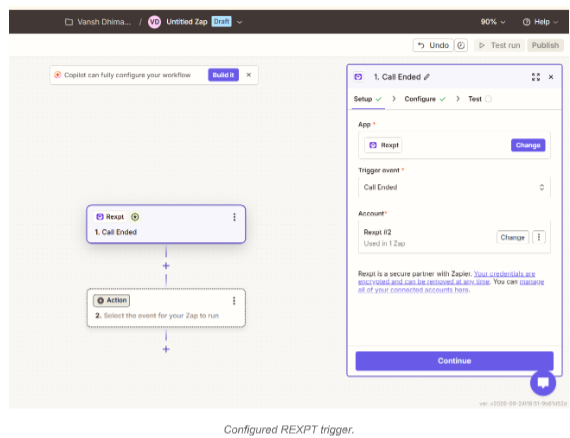
Test the REXPT Trigger
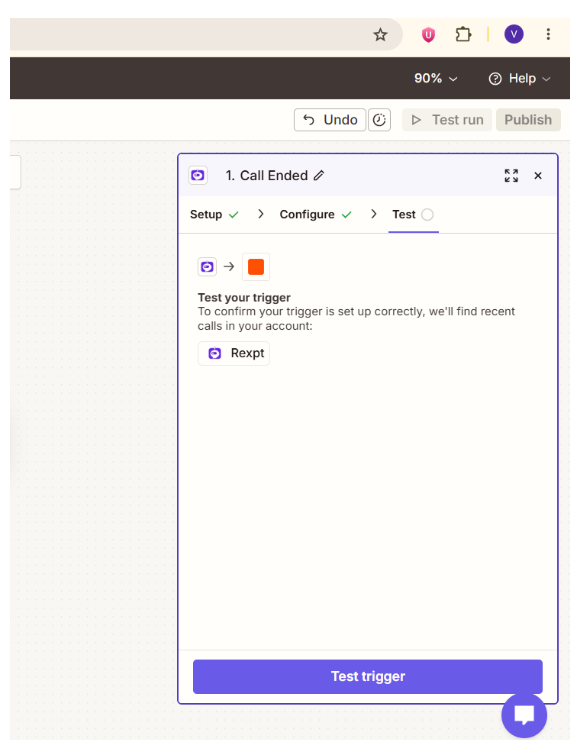
Step 1 — Run Test Trigger
Open the Test section and click Test trigger. Zapier retrieves recent REXPT call data as sample data for the next step.
Choose the Destination Action
Step 1 — Add an Action step
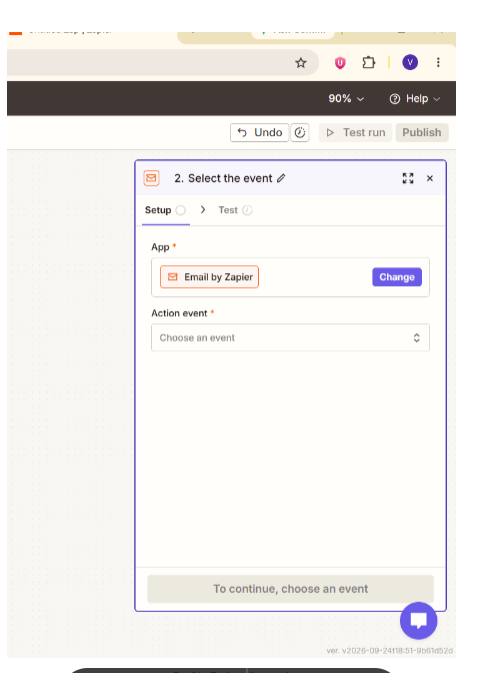
Click the Action step and search for the app where you want to send the REXPT data. The example in this guide uses Email by Zapier.
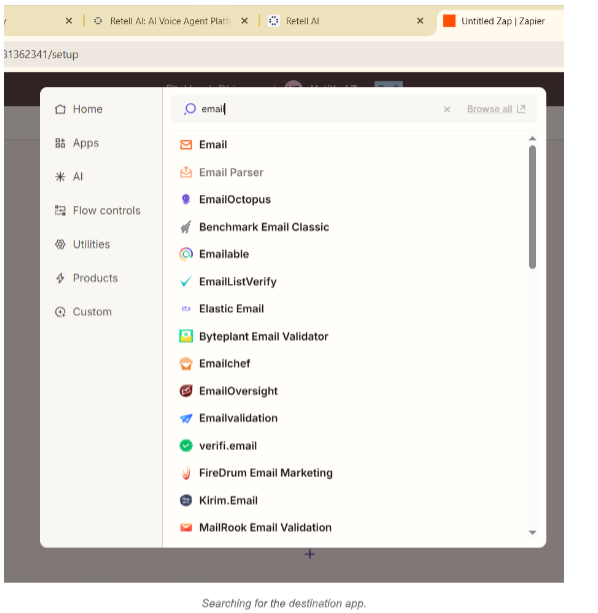
Step 2 — Select the Action Event
For Email by Zapier, select Send Outbound Email.
Map REXPT Data
Step 1 — Configure the destination fields
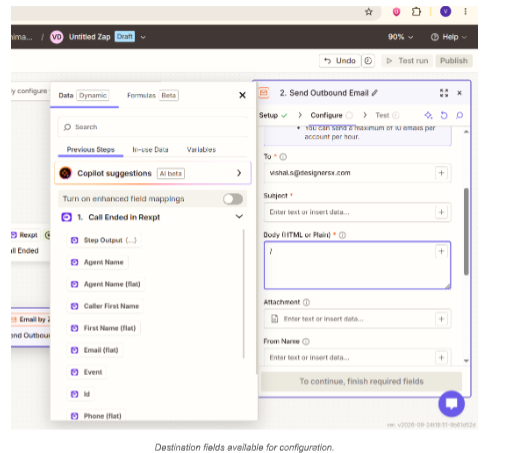
Set the required destination fields, such as the recipient, subject, and body.
Step 2 — Insert REXPT fields
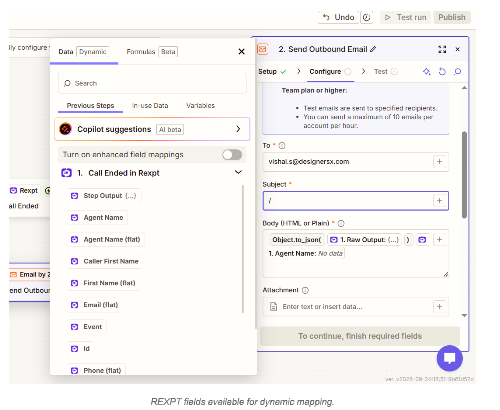
Use the sample data from the REXPT Call Ended step to map the information you want to send.
- Available fields shown in the workflow can include Agent Name, Caller First Name, Email, Event, ID, Phone, and other returned call data.
- You can combine dynamic REXPT fields with your own text.
- The Subject can be written manually or built from a mapped field.
- The Body can contain multiple mapped call details in the format you want.
Test the Action
Step 1 — Send a test
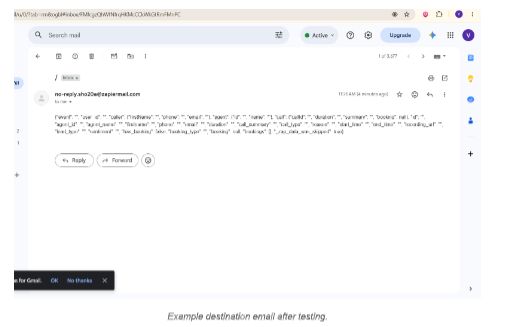
Complete the required fields and run the action test. Verify that the selected destination receives the mapped REXPT data.
Publish the Zap
Step 1 — Name and publish
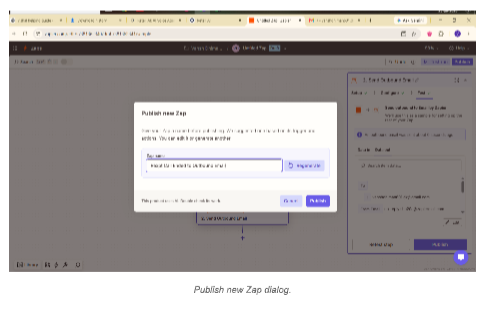
After the trigger and action tests are successful, click Publish, give the Zap a meaningful name, and publish the workflow.
Verify the Final Result
Step 1 — Check the destination
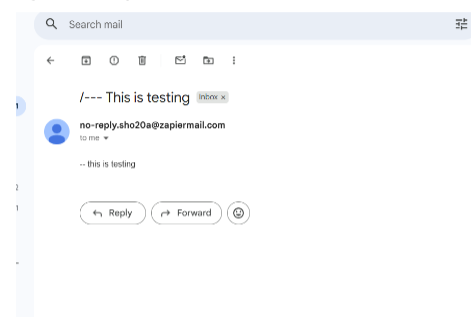
Run a real REXPT call and verify the selected destination. The mapped REXPT information should appear according to the Action configuration.
How the Zapier Workflow Works
- A customer call with the REXPT agent ends.
- The REXPT Call Ended trigger starts the Zap.
- Zapier receives the available REXPT call data.
- The Action step sends the selected fields to the destination app.
- The destination displays the data according to the mapping you configured.
Important Notes
- The destination can be an email service or another app supported by Zapier.
- Available mapping fields depend on the data returned by the REXPT trigger.
- Subject, Body, and other destination fields can use dynamic REXPT values, manual text, or a combination of both.
- Test the trigger and action before publishing the Zap.
- The final data format depends on the destination app and the mapping configured in the Action step.
Zapier Setup Checklist
- REXPT is selected as the trigger app.
- Call Ended is selected as the trigger event.
- The correct REXPT account is connected.
- The trigger test returns sample call data.
- The destination app and action event are configured.
- Required REXPT fields are mapped.
- The action test succeeds.
- The Zap is published and the destination receives the expected data.