How the Make.com Integration Works
Make.com lets you build a scenario in which REXPT AI provides the trigger event and another app performs the action. You can choose the REXPT event you want to use—such as a new call analysis or a new booking—and then decide which fields should be sent to the destination app.
The screenshots in the source guide use Gmail as the action app. The same setup pattern can be used with another app available in Make.com, including a CRM or another supported destination.
Before You Begin
- Have access to your REXPT AI account and Make.com account.
- Decide which REXPT event you want to send: call data, booking data, or another available event.
- Decide which destination app should receive the data and which fields you want to map.
Create a Make.com Scenario
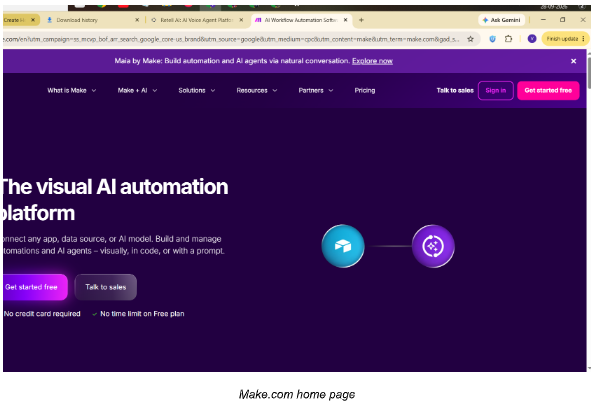
Step 1 — Open Make.com
Sign in to Make.com and open your organization dashboard.
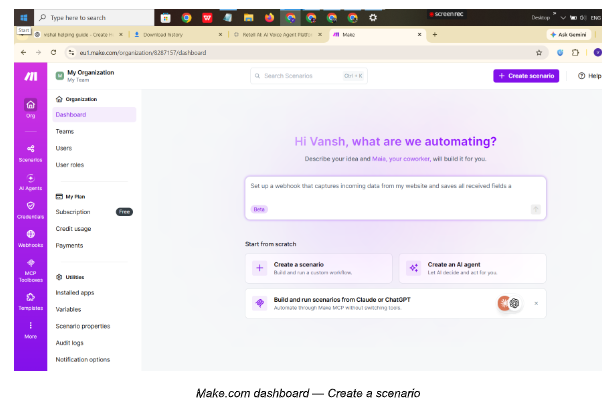
Step 2 — Create a new scenario
From the Make.com dashboard, select Create a scenario to start a new automation workflow.
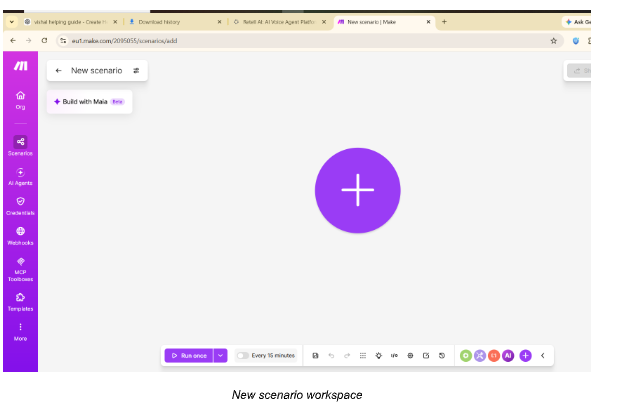
Step 3 — Add REXPT AI
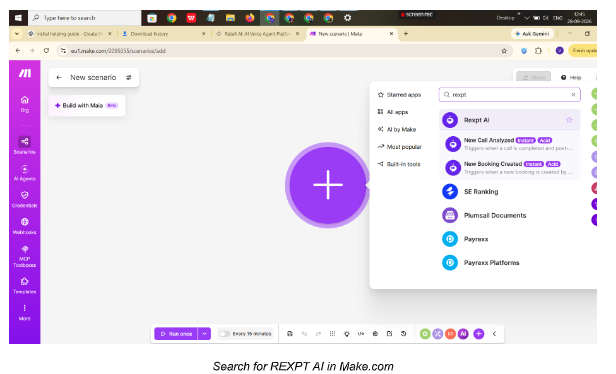
Click the large + button, search for Rexpt, and select Rexpt AI from the available apps.
Configure the REXPT AI Trigger
Step 4 — Select the REXPT AI event
Choose the REXPT AI module and select the event that should start the scenario. The available options shown in the guide include New Call Analyzed and New Booking Created.
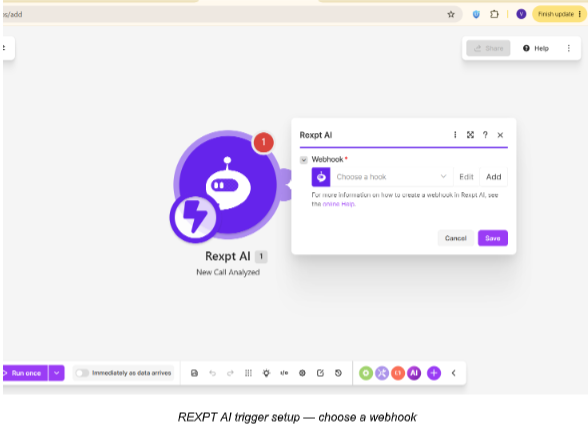
- Use New Call Analyzed when the scenario should start from call-analysis data.
- Use New Booking Created when the scenario should start from booking data.
Step 5 — Create the webhook
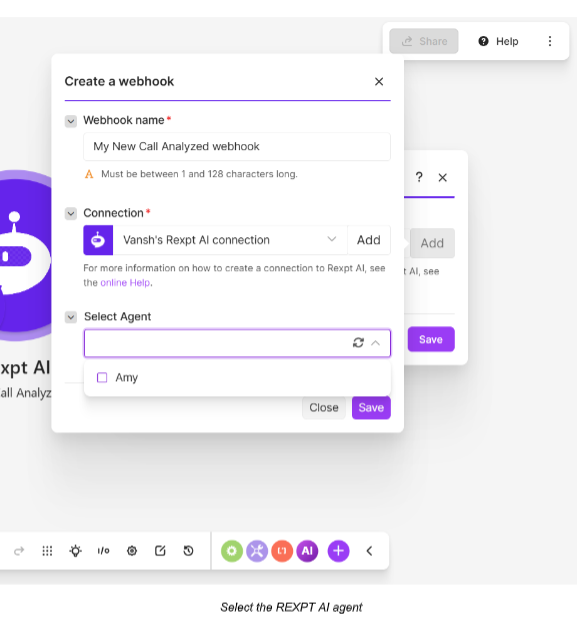
Select Add next to the Webhook field. Enter a webhook name and continue with the REXPT AI connection.
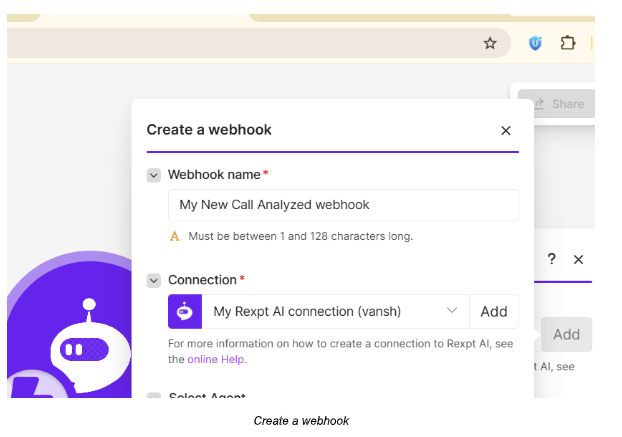
Step 6 — Create the REXPT AI connection
If a connection does not already exist, select Add, enter a connection name, and save it.
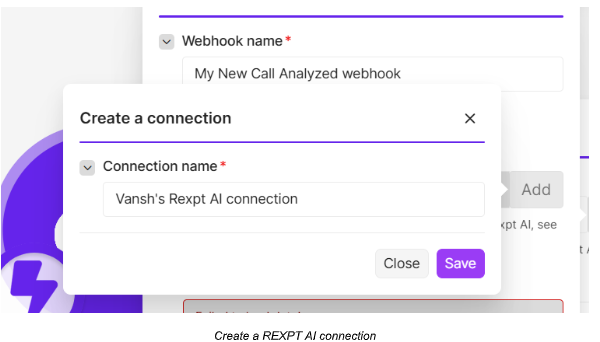
Step 7 — Authorize Make.com in REXPT
Make.com redirects you to REXPT AI to authorize the connection. Review the access request and select Allow to connect Make.com with your REXPT account.
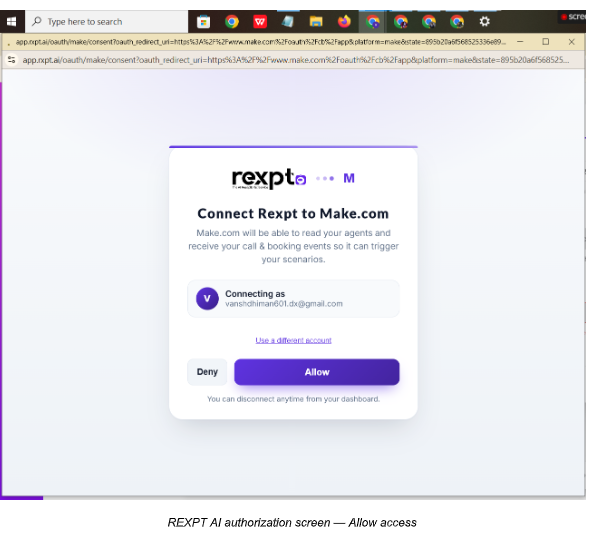
Step 8 — Select the agent
After the connection is authorized, return to Make.com and select the REXPT AI agent whose events should trigger this scenario.
Save the webhook configuration. The REXPT AI trigger is now ready to provide event data to the scenario.
Add the Destination Action
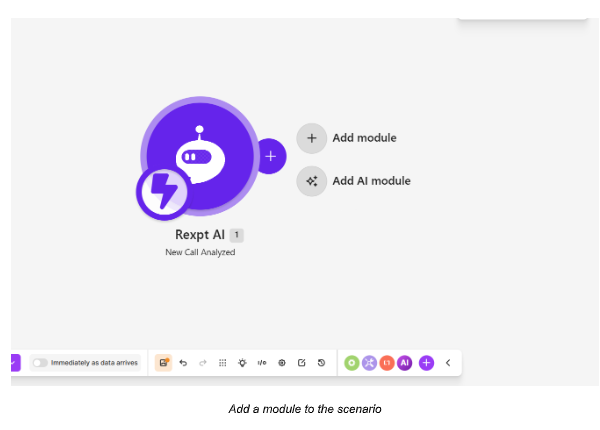
Step 9 — Add an action module
Use the + control after the REXPT AI trigger and select the app where you want to send or use the REXPT data.
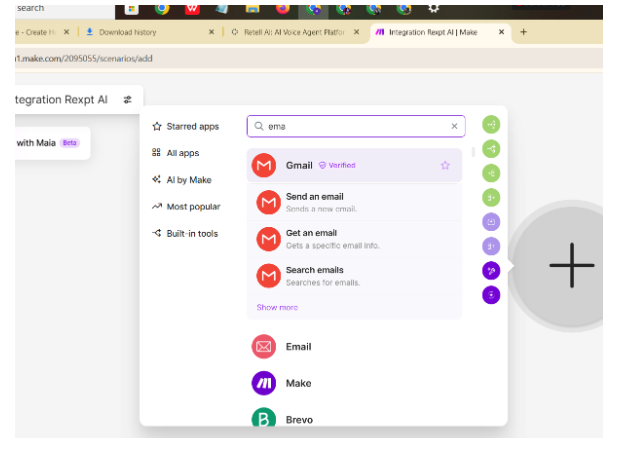
Step 10 — Choose the destination app
Search for the required app. In the example, Gmail is selected as the destination action.
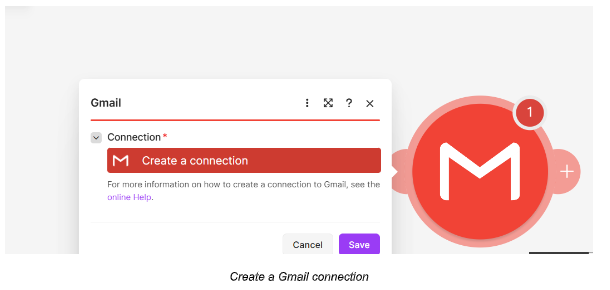
Step 11 — Create the destination app connection
When the destination app requires a connection, select Create a connection and authorize or connect the required account.
Map the Data You Want to Send
Step 12 — Configure the action
Complete the required fields for the destination app. For example, in Gmail you can specify the recipient email address, subject, body type, and content.
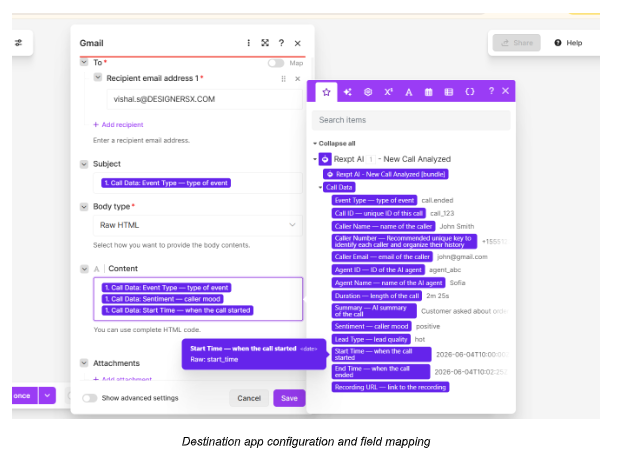
Step 13 — Map REXPT AI fields
Click into a field and select data from the REXPT AI trigger output. You can map the fields you need instead of sending every available field.
- For the Subject, select a relevant REXPT field or enter your own fixed text.
- For the Body/Content, insert the REXPT fields you want the recipient to see.
- You can combine multiple mapped fields in the same destination field.
- The exact fields available depend on the selected REXPT AI event and the data returned by that event.
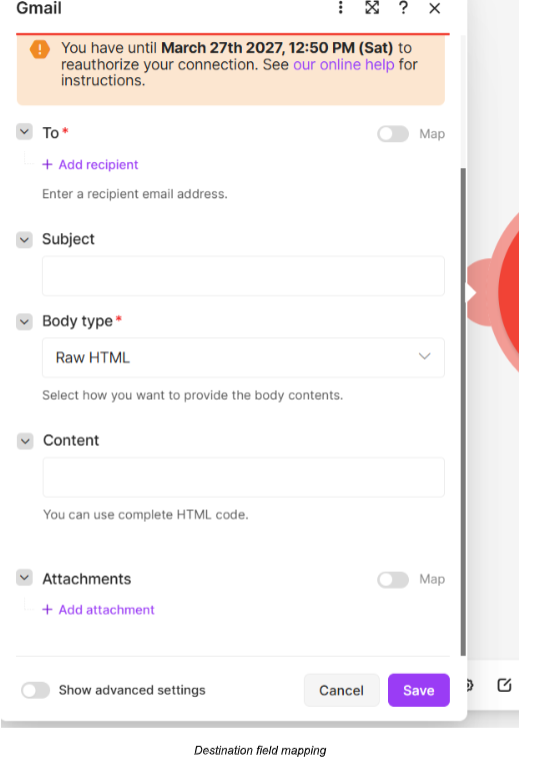
Choose only the information your workflow needs. For example, a CRM workflow may map caller name, phone, email, agent name, call duration, summary, sentiment, lead type, start/end time, and recording URL when those fields are available from the selected trigger.
Save and Run the Scenario
Step 14 — Save the scenario
After the trigger and action are configured, save the scenario. The scenario should show the REXPT AI trigger connected to your selected action module.
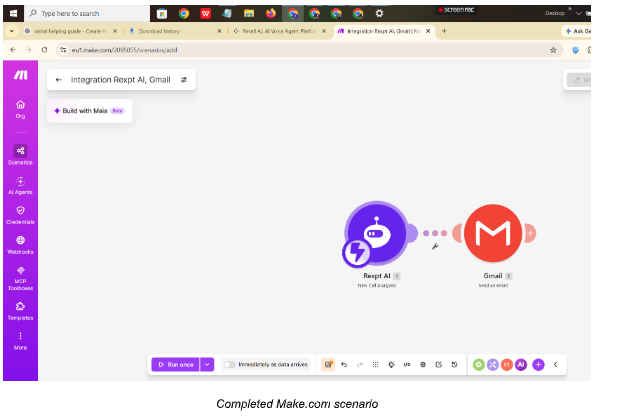
Step 15 — Test the trigger
Run the scenario once and generate the selected REXPT event—for example, complete a call when using New Call Analyzed. Make.com can then receive the event and pass the mapped data to the action module.
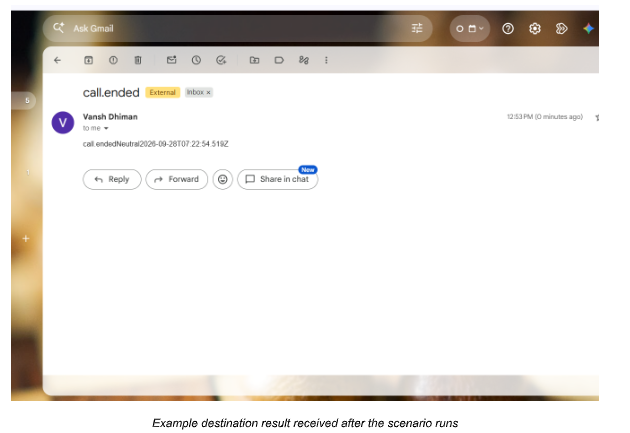
Review the action result in the destination app. In the example shown, the configured Gmail action receives the REXPT event data.
How the Make.com Data Flow Works
- REXPT AI generates the selected event, such as a new call analysis or new booking.
- The REXPT AI webhook sends the event data to Make.com.
- Make.com receives the trigger data and exposes the available fields for mapping.
- The configured action app receives the fields you selected in the action configuration.
- The scenario can be reused for future matching events once it is saved and enabled according to your Make.com setup.
Important Notes
- The guide uses REXPT AI as the trigger and Gmail as an example action app.
- You can select the REXPT event according to the data your workflow needs, including call or booking events shown in the REXPT AI app options.
- The destination app and its available action fields depend on the app selected in Make.com.
- Only map fields that are available in the selected REXPT AI trigger output.
- If the trigger does not return a particular field, that field cannot be mapped from that trigger output.
Confirm Your Setup
- REXPT AI is connected to Make.com.
- The required REXPT AI agent is selected.
- The correct trigger event is selected.
- The destination app is connected.
- Required destination fields are configured.
- REXPT AI data is mapped to the fields you want to send.
- The scenario is saved and tested with a real trigger event.