What MCP Integrations Do
MCP (Model Context Protocol) integrations let REXPT connect to MCP-compatible servers and discover the tools provided by those servers. You can then enable the tools your agent should be able to call and configure the required tool settings.
Open MCP Servers
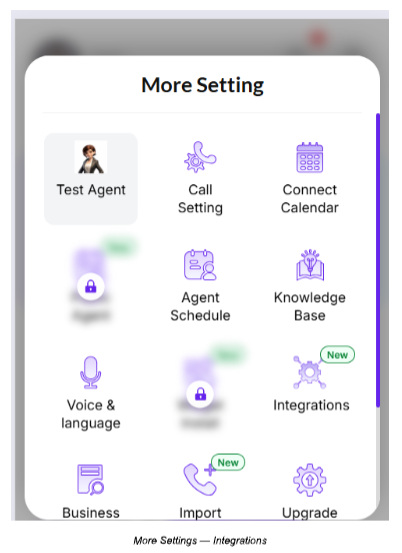
Step 1 — Open Integrations
From the REXPT dashboard, open More and select Integrations.
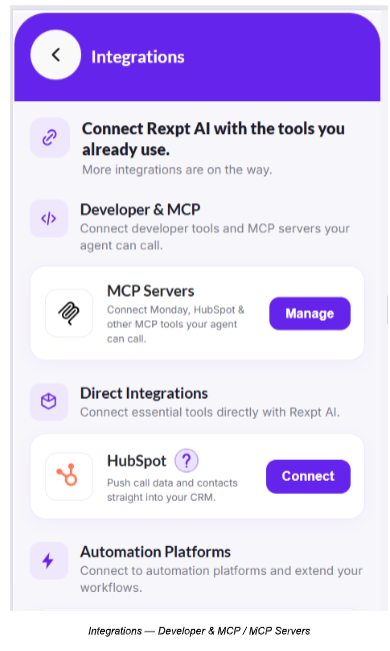
Step 2 — Open MCP Servers
Under Developer & MCP, select MCP Servers and then Manage.
Add an MCP Server
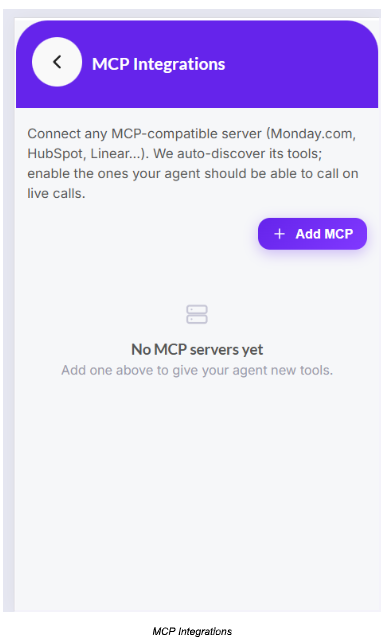
Step 1 — Select Add MCP
On the MCP Integrations page, select Add MCP.
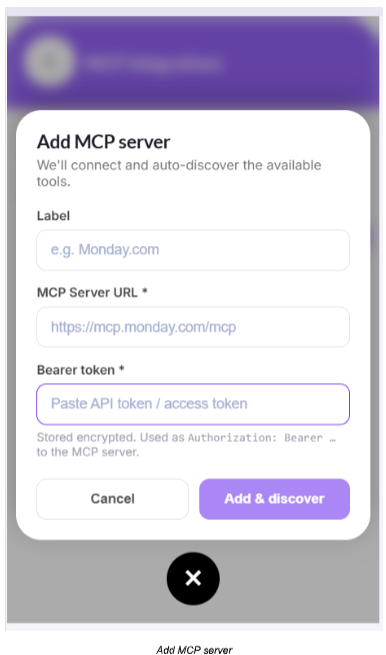
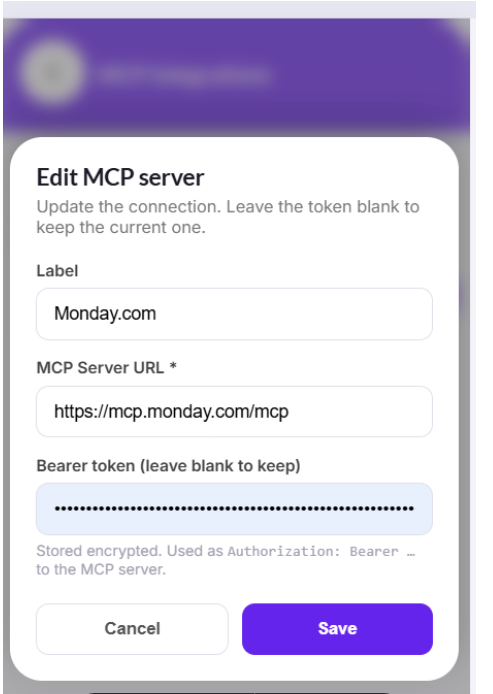
Step 2 — Enter the connection details
- Label — Enter a name for the MCP server, for example, Monday.com.
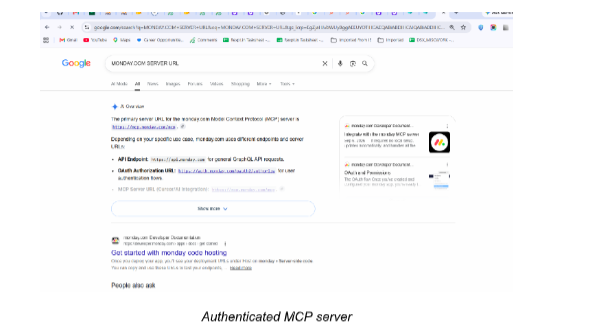
- MCP Server URL — Enter the MCP server URL.
- Bearer token — Enter the required access token.
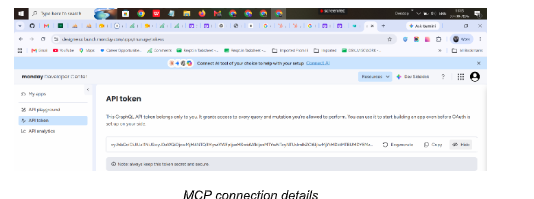
Example: Get Credentials from Monday.com
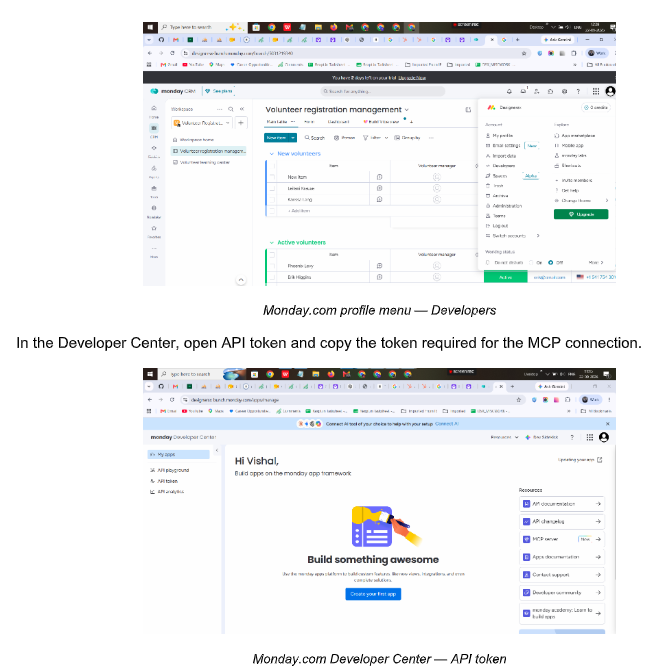
For the Monday.com example, open the Monday.com profile menu and select Developers.
Connect and Discover Tools
Enter the credentials in REXPT and select Add & discover. REXPT connects to the server and automatically discovers its available tools.
After a successful connection, the MCP server card displays its authenticated status and discovered tools.
Manage the MCP Server
- Refresh the connection and tool discovery.
- Edit the server details.
- Delete the connected MCP server.
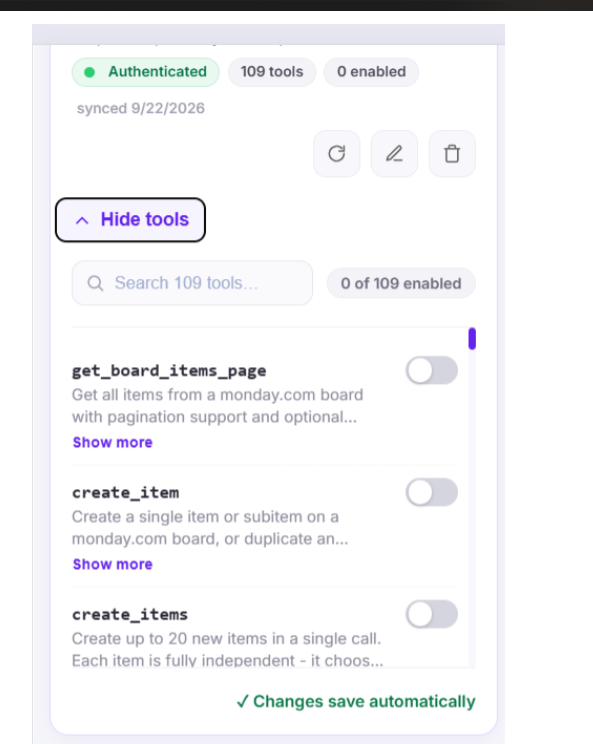
- Open Manage tools to configure the discovered tools.
Enable and Configure Tools
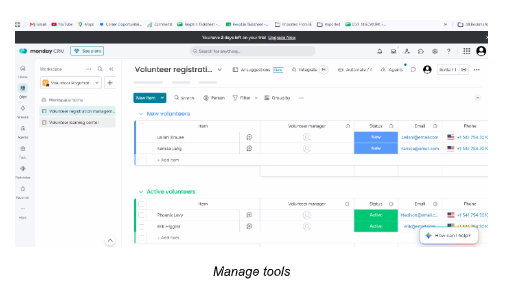
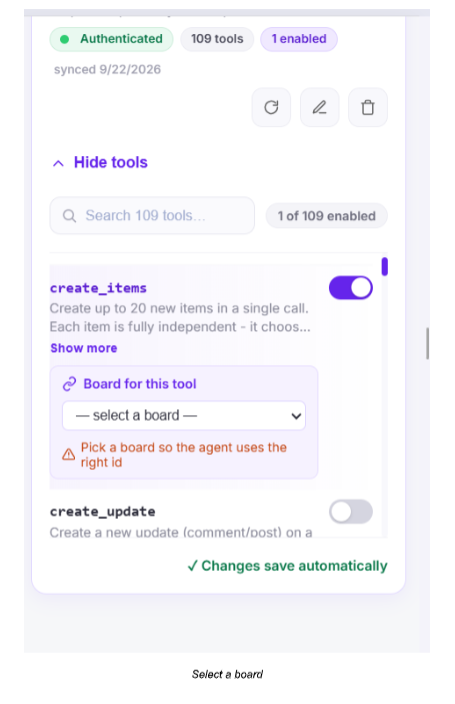
Open Manage tools, enable the tool required by your agent, and configure its required settings.
Configure Board and Field Mapping
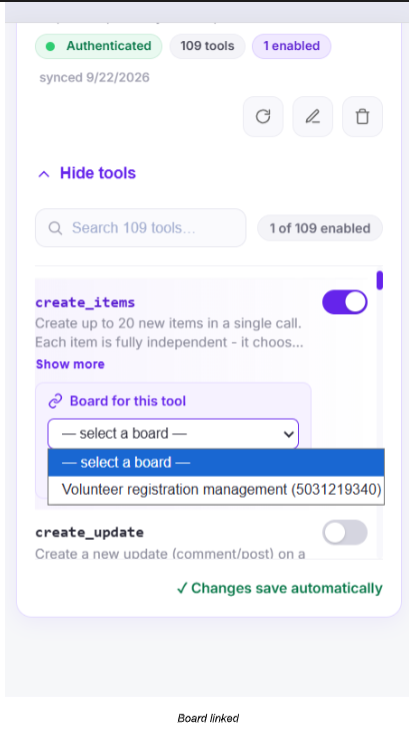
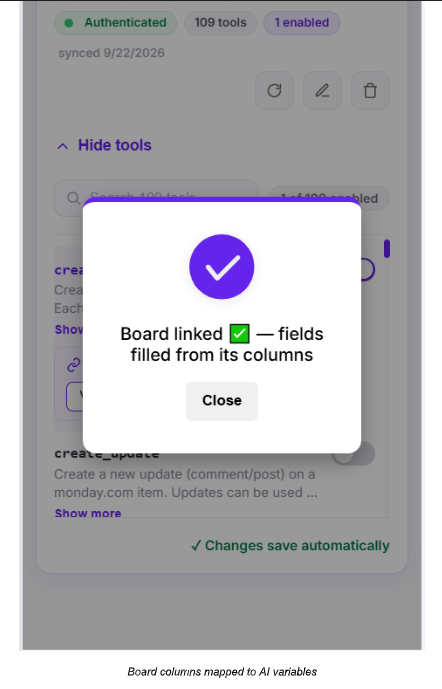
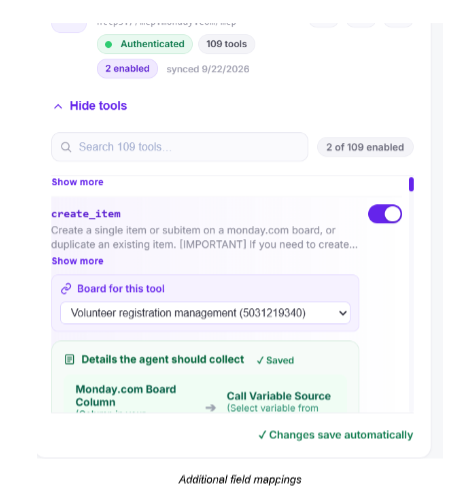
For the Monday.com example, select the board used by the enabled tool and map board columns to the corresponding AI variables.
Test Your MCP Setup
After enabling the required tools and completing the mappings, use Test Agent to verify the configured flow.
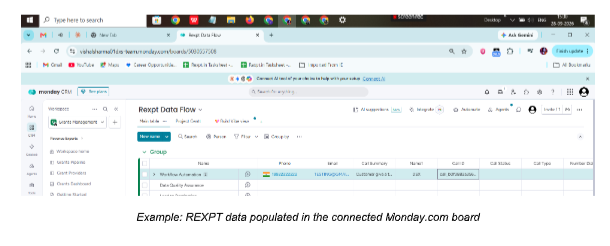
Confirm that the selected tool is triggered and that the configured information is mapped to the connected board or service.
Important Notes
- MCP integrations require an MCP-compatible server URL and the required authentication credentials.
- Enable only the MCP tools required by your agent.
- Monday.com is used as an example of an MCP-compatible service in this guide.
Confirm Your Setup
- The MCP server shows an authenticated connection.
- The required tools have been discovered and enabled.
- Any required board or field mappings are configured.
- Test Agent confirms the configured tool flow works as expected.