Before you begin
Open Widget Install
Step 1 — Open More
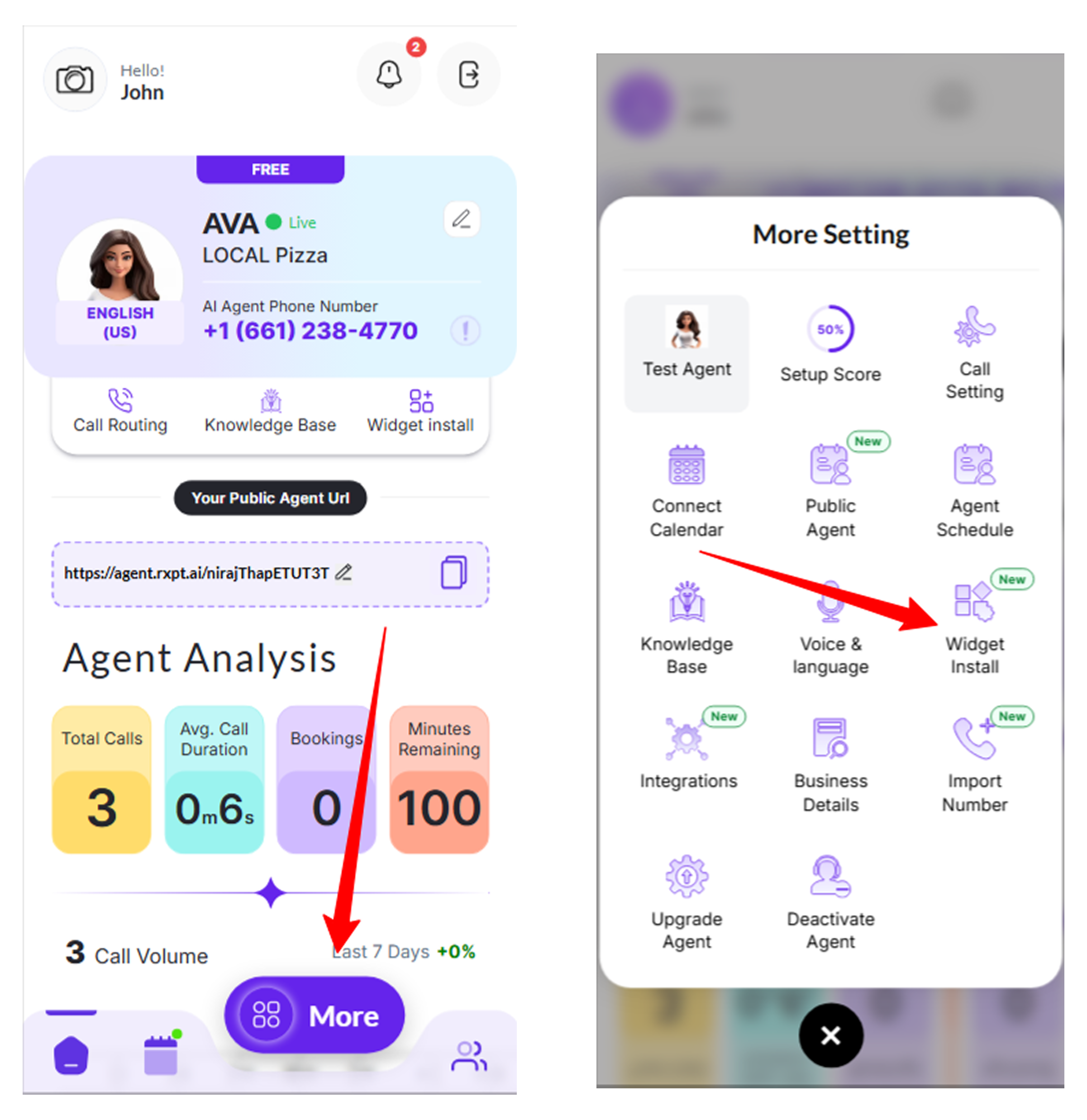
From the Rexpt dashboard, select More from the bottom navigation.
Step 2 — Select Widget Install
In More Settings, select Widget Install.
Add your website domain
Step 1 — Select Add Domain
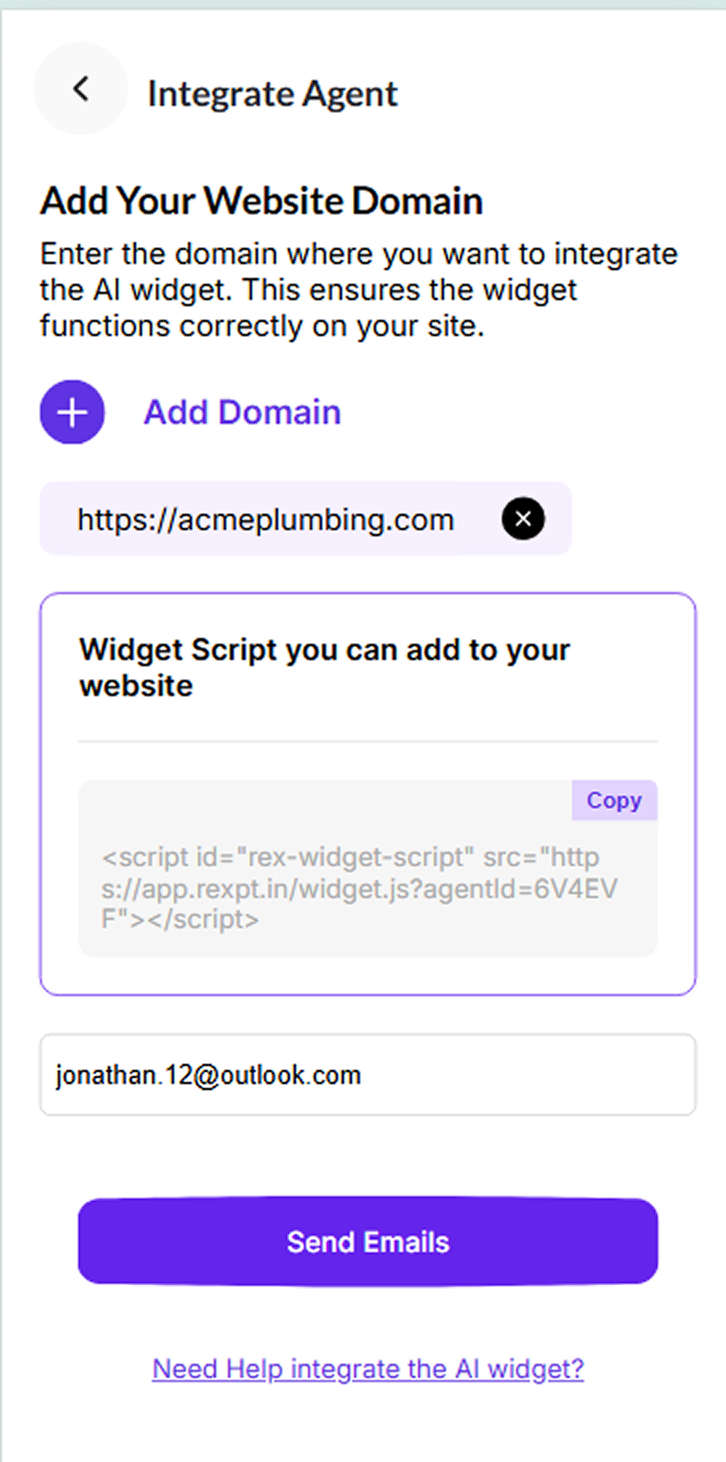
On the Integrate Agent screen, select Add Domain.
Step 2 — Enter your domain
Enter the website domain where you want the AI widget to work. Use the full domain shown for your website, then select Add Domain.
Step 3 — Confirm the domain
After the domain is added, it appears on the Integrate Agent screen, and the Generate Code button becomes available.

Generate the widget script
Step 1 — Select Generate Code
After your website domain is added, select Generate Code.
Step 2 — Copy the widget script
Rexpt generates the widget script for your AI Receptionist. Select Copy to copy the script, then add it to your website code.
Send the script to your developer
If a developer or website manager will install the widget for you, enter their email address below the generated script and select Send Emails. This will allow you to share the widget installation code with them directly.
Alternatively, select Copy to copy the generated widget script and add it to your website’s main or global code file’s header section so the script loads across your website. If you are not sure where to add the code, share the copied script with your website developer or administrator.
Use the widget on more than one website
You can add additional website domains for the same Rexpt widget. The same generated widget script can be used on the domains that are added to the allowed domain list.
Confirm the widget is installed
After the script is added to your website, open an allowed website domain and confirm that the Rexpt widget appears and can be opened.
If the same script is added to a website domain that has not been added in Rexpt, the widget should not be available on that domain.