Contacts Module at a Glance
The Contacts module helps you control who the AI Agent should handle, who should reach you directly, and which callers should be blocked. It brings trusted contacts, caller records, Contact Routing, blocked numbers, and spam protection together in one place.
- My Contacts — manage trusted contacts and optionally mark them as VIP.
- Agent Contacts — review caller records that appear automatically when callers are not already in My Contacts.
- Blacklist — review blocked numbers and manage Auto Spam Blocking settings.
- Contact Routing — route trusted contacts to the configured receiving number to help protect your personal number.
Open the Contacts Module
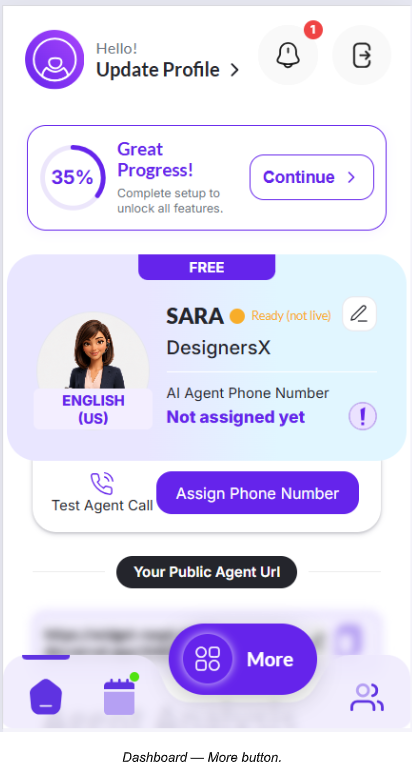
From the dashboard, open More and select Contacts. The Contacts page contains My Contacts, Agent Contacts, and Blacklist.
Manage My Contacts
My Contacts is your trusted-contact list. Use it to add or import contacts, organize them by category, and optionally mark a contact as VIP.
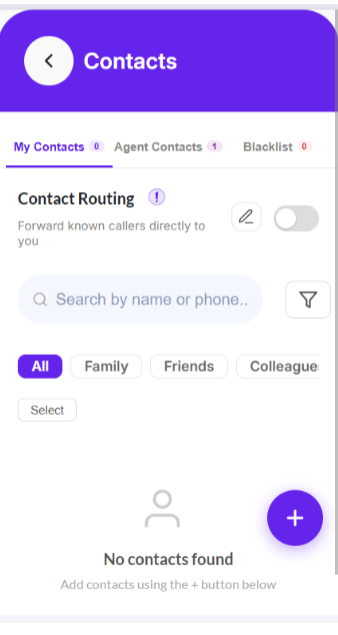
Step 1 — Open the Add Contact menu
Tap the + button in My Contacts. The available options are Sync Contacts, Add Contact, and Upload File.
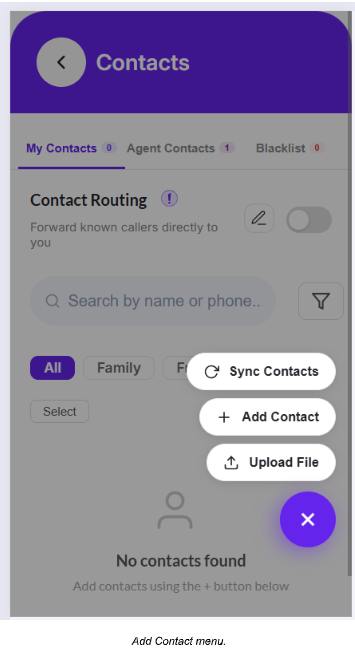
Step 2 — Sync Google or Phone Contacts
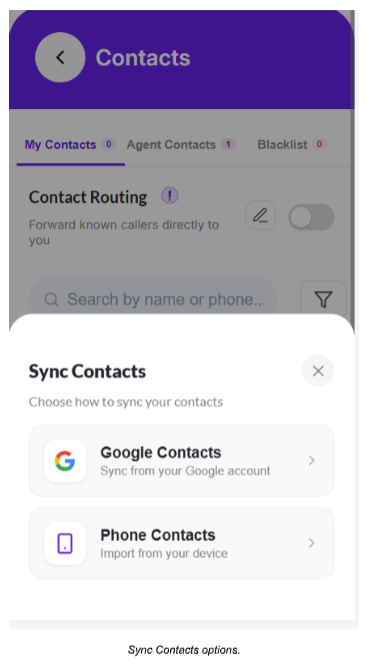
Select Sync Contacts. Choose Google Contacts to sync from your Google account or Phone Contacts to import contacts from your device.
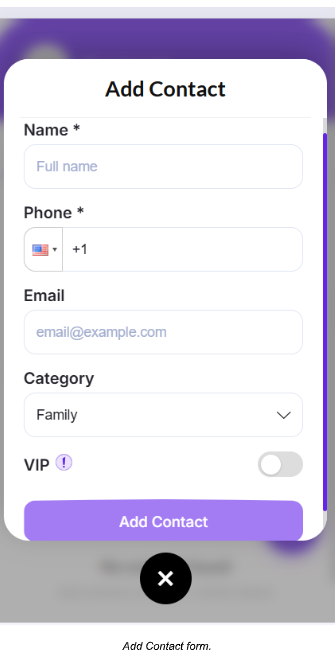
Step 3 — Add a contact manually
Select Add Contact and enter the required Name and Phone. Email is optional. Choose a Category if required and use the VIP toggle when the contact should be marked as VIP.
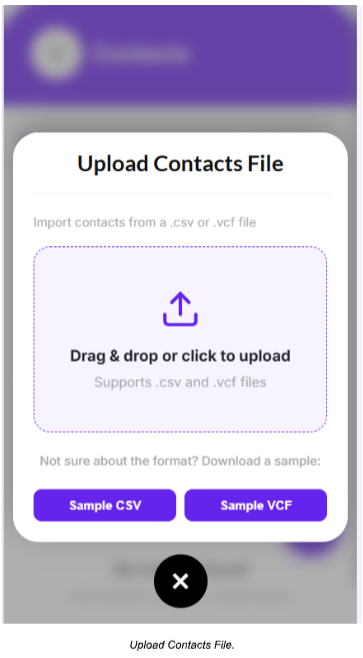
Step 4 — Upload a contacts file
Select Upload File to import contacts from a .csv or .vcf file. The upload screen also provides sample CSV and VCF formats.
VIP and Non-VIP Contacts
VIP is an optional tag. If the VIP toggle is enabled, the contact is a VIP contact. If VIP is not enabled, the contact is Non-VIP by default. You can set VIP while adding a contact and change the status later for an existing My Contact.
- VIP — VIP toggle is ON.
- Non-VIP — VIP toggle is OFF.
Configure Contact Routing
Contact Routing helps protect your personal number. A caller can continue to use the assigned agent/business number, while a trusted contact is routed to the configured receiving or forwarding number instead of being handled by the AI Agent.
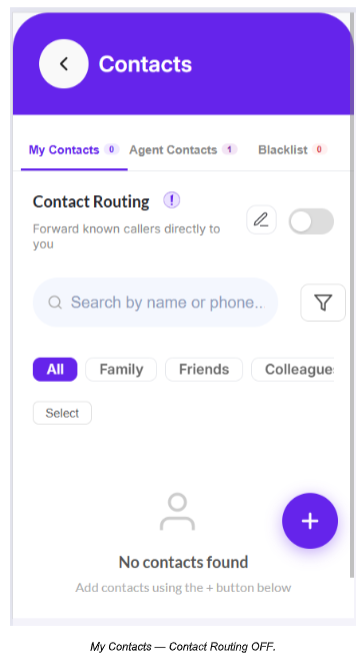
Step 1 — Review Contact Routing
Contact Routing appears at the top of My Contacts. When it is OFF, trusted contacts are not routed through this feature.
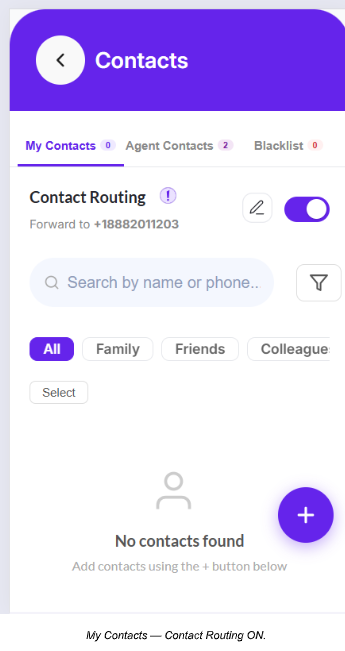
Step 2 — Enable Contact Routing
Turn on Contact Routing. The page displays the configured forwarding number used for routed trusted contacts.
How Contact Routing Works
- The caller calls the assigned agent/business number.
- When the caller is a trusted contact in My Contacts, the call is routed to the configured user/forwarding number.
- The AI Agent does not handle that routed trusted-contact call.
- This lets you use the agent/business number without publicly exposing your personal number.
VIP After-Hours Handling
VIP and Non-VIP contacts have different after-hours handling.
| Contact Type | During Business Hours | After Business Hours |
|---|---|---|
| My Contact — VIP | Call is routed to the configured user/forwarding number. | AI Agent handles the call and can take the caller's message. |
| My Contact — Non-VIP | Call is routed to the configured user/forwarding number. | Call is not connected to the user through the VIP after-hours handling flow. |
Review Agent Contacts
Agent Contacts shows caller numbers and call logs that appear automatically when calls reach the AI Agent and the caller is not already in My Contacts.
Step 1 — Review Agent Contacts
Open Agent Contacts to view caller numbers, call count, associated agent, and the latest call time. The screen also provides search and agent filtering.
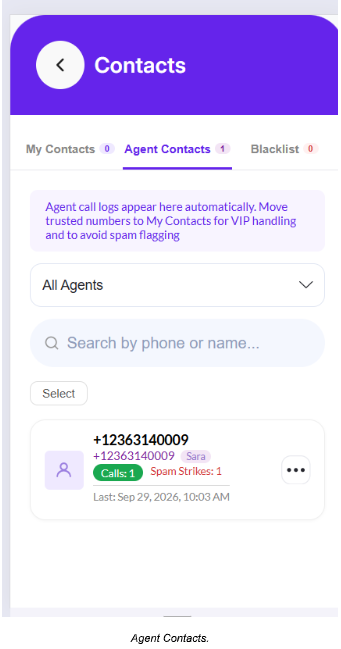
When a caller should be treated as a trusted contact, add or move the number to My Contacts. Once it is in My Contacts, the contact can also be marked VIP if required.
Manage Blacklist and Auto Spam Blocking
The Blacklist area helps manage unwanted callers and provides visibility into numbers blocked automatically by spam protection or blocked manually by the user.
Step 1 — Open Blacklist
Select the Blacklist tab to view Auto Spam Blocking, agent selection, and separate counts for Auto-blocked, Manual, and Total blocked numbers.
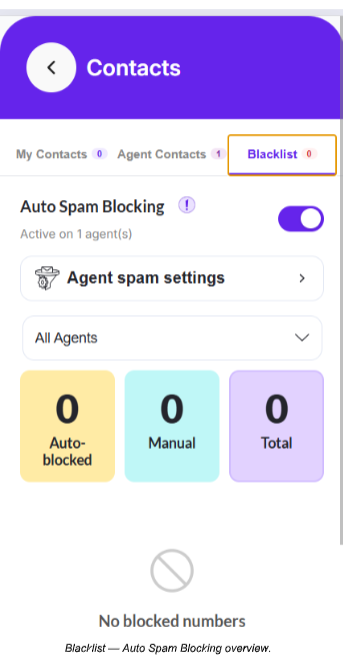
Auto Spam Blocking is ON by default. When enabled, the agent can detect irrelevant or spam calling behavior and automatically block a number after it reaches the configured threshold.
Step 2 — Open Agent Spam Settings
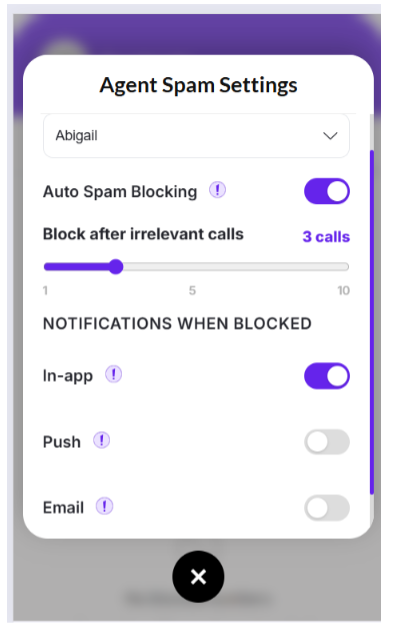
Tap Agent spam settings to configure spam protection for an agent.
Configure the Spam Threshold
- The Block after irrelevant calls setting controls how many irrelevant calls are required before a number is automatically blocked.
- The threshold can be set from 1 to 10 calls.
- The default threshold is 3 calls.
- With the default setting, after 3 irrelevant or spam calls, the number is automatically blocked.
Notifications When a Number Is Blocked
Agent Spam Settings provides notification controls for blocked numbers.
- In-app notification — ON by default.
- Push notification — OFF by default.
- Email notification — OFF by default.
Blacklist Counts
- Auto-blocked — numbers blocked automatically by Auto Spam Blocking.
- Manual — numbers blocked manually.
- Total — total blocked numbers.
Important Notes
- My Contacts are trusted contacts; Agent Contacts are automatic caller records for callers not already in My Contacts.
- VIP is optional. A My Contact without VIP enabled is Non-VIP by default.
- Contact Routing in Contacts is different from the separate Call Routing feature.
- Contact Routing is intended to protect your personal number.
- Auto Spam Blocking is ON by default.
- The default irrelevant-call threshold is 3 calls and can be adjusted from 1 to 10.
- In-app blocked-number notifications are ON by default; Push and Email are OFF by default.
Confirm Your Setup
- Required trusted contacts are present in My Contacts.
- VIP is enabled only for contacts that require VIP handling.
- Contact Routing is enabled when trusted calls should reach the configured receiving number.
- Agent Contacts are reviewed so trusted callers can be moved to My Contacts.
- Auto Spam Blocking is configured with the required call threshold.
- Notification preferences are configured for blocked-number events.