Availability & Scheduling at a Glance
Purpose: REXPT separates the agent's Business Hours from appointment availability, while allowing both settings to work together.
- Agent Schedule defines the agent's Business Hours.
- Public Agent provides the customer-facing agent page and public URL.
- Availability & Scheduling controls appointment duration, weekly availability, and booking rules.
- Date-Specific Overrides handles one-time changes to availability.
- Closed in Business Hours is an owner-side warning when appointment availability is enabled on a day marked closed in Business Hours.
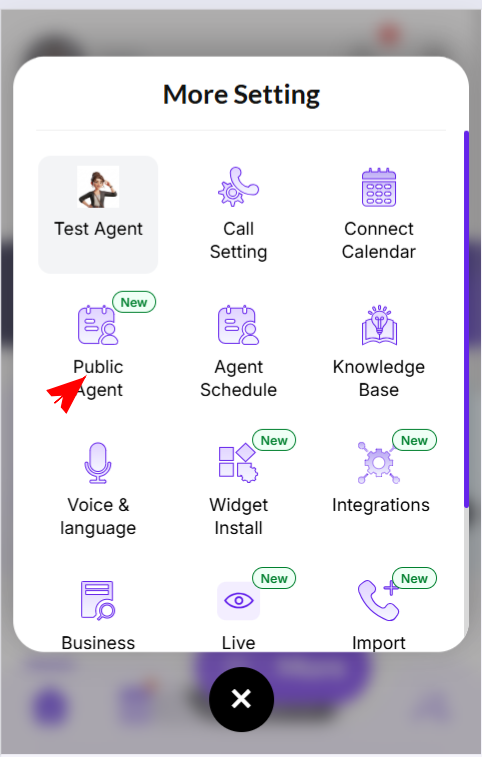
Open Agent Schedule
Purpose: Agent Schedule is where the business owner configures the agent's Business Hours.
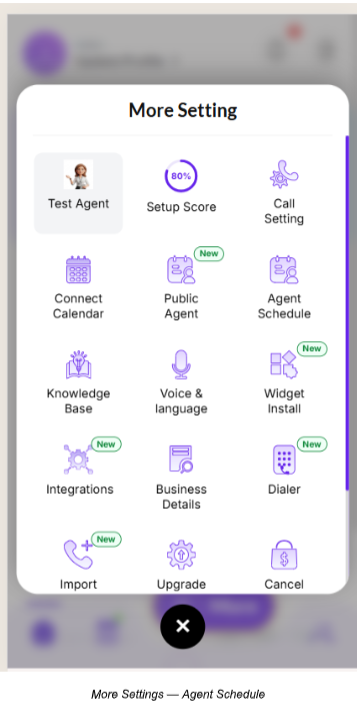
Step 1 — Open More Settings
Action: Open More Settings and select Agent Schedule.
Step 2 — Review Business Hours
Action: Use the Agent Schedule page to select business days and define the start and end time for each selected day.
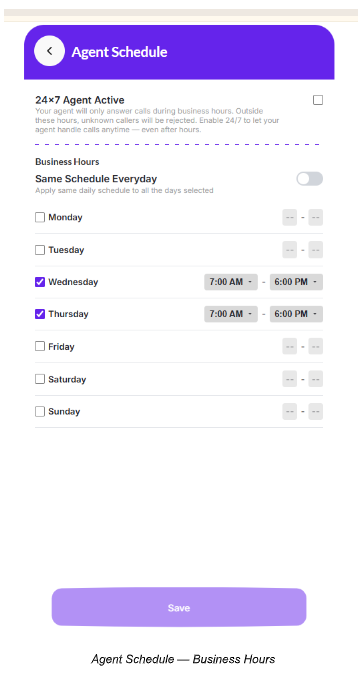
24×7 Agent Active
- Enable this setting when the agent should handle calls outside the configured Business Hours.
- When it is not enabled, the agent follows the configured Business Hours for call handling.
Open the Public Agent
Purpose: The Public Agent is the customer-facing experience where visitors can interact with the agent and access the appointment booking experience.
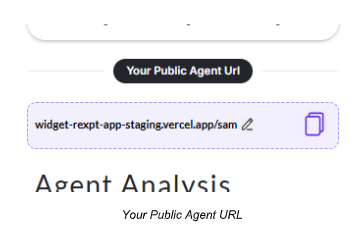
Step 1 — Locate Your Public Agent URL
Action: Open Public Agent and use the displayed Your Public Agent URL to access the public agent page.
Step 2 — Customize the Vanity URL
Action: Open the Public URL controls, edit the Vanity URL slug, and select Update Vanity URL to save the customized path.
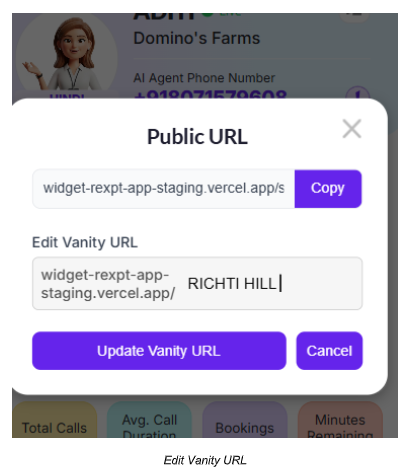
- The vanity URL lets the owner customize the public agent URL path.
- After updating it, the customized URL can be used to open the public agent page.
Availability & Scheduling
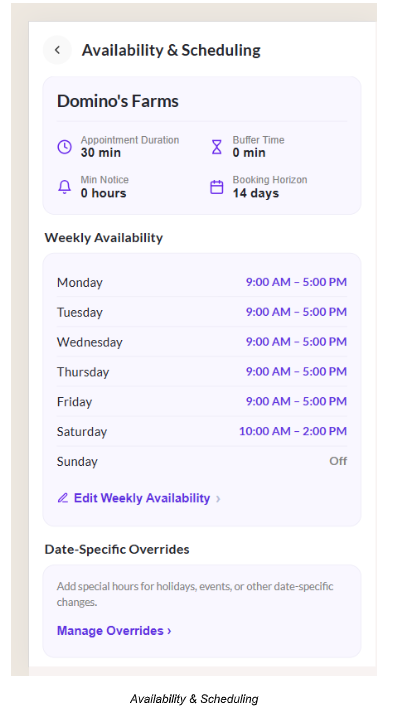
Purpose: Open Availability & Scheduling to configure the appointment schedule and review the current booking setup.
Appointment Settings
- Appointment Duration — default length of an appointment.
- Buffer Time — time reserved around a booking.
- Minimum Notice — minimum advance time required before a customer can book.
- Booking Horizon — maximum number of days into the future a customer can book.
Weekly Availability
Purpose: Set the regular appointment availability for each day of the week.
Step 1 — Open Edit Weekly Availability
Action: Select Edit Weekly Availability.
Step 2 — Enable or Disable a Day
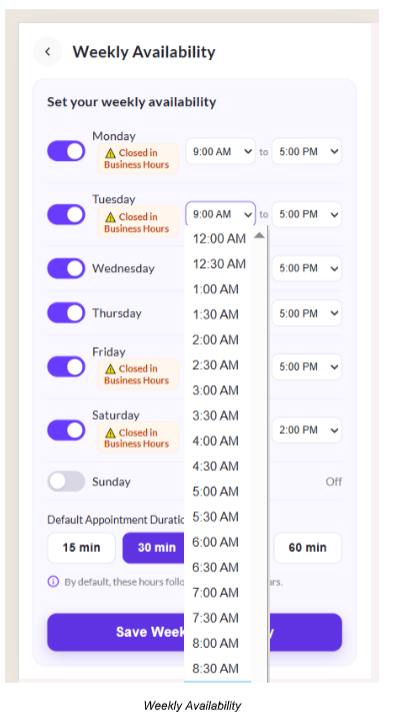
- Turn a day ON to configure appointment availability for that day.
- Turn a day OFF when you do not want to configure appointment availability for that day.
- Enabled days show start and end time selectors.
Step 3 — Set Start and End Times
Action: Choose the required start and end times from the time selectors.
Step 4 — Set Default Appointment Duration
- 15 min
- 30 min
- 45 min
- 60 min
Step 5 — Save Weekly Availability
Action: Select Save Weekly Availability to apply the weekly appointment schedule.
Closed in Business Hours
Purpose: The orange Closed in Business Hours tag tells the owner that appointment availability is enabled for a day that is marked closed in Agent Schedule Business Hours.
- It is an owner-side warning about a difference between the two schedules.
- The warning tag does not automatically remove the configured appointment slots.
- The owner can decide whether to keep the day closed or enable appointment availability anyway.
When a Closed Day Is Enabled
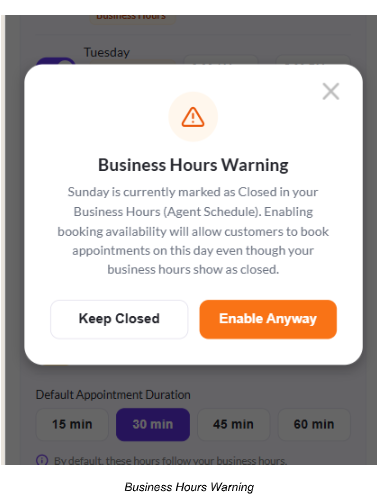
Action: When you turn ON appointment availability for a day that is closed in Business Hours, review the Business Hours Warning.
Choose an Option
- Keep Closed — keep appointment availability disabled for that day.
- Enable Anyway — allow appointment availability for that day even though Business Hours show it as closed.
Date-Specific Overrides
Purpose: Use Date-Specific Overrides for a one-time change without changing your regular weekly schedule.
Step 1 — Open Manage Overrides
Action: Select Manage Overrides under Date-Specific Overrides.
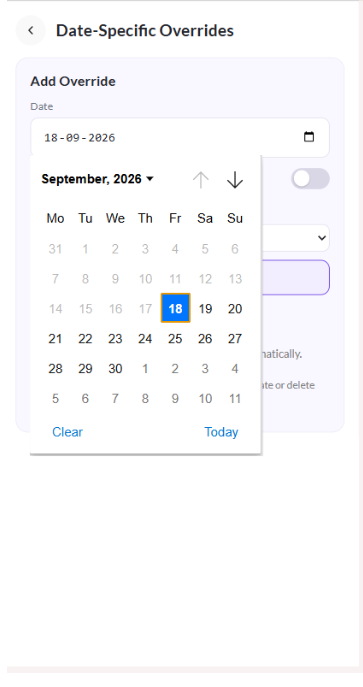
Step 2 — Select the Date
Action: Choose the exact calendar date that needs a special schedule.
Step 3 — Set the Override
- Block the selected date when appointments should not be available.
- Or set different start and end times for that specific date.
- The override applies to the selected date only.
Step 4 — Save the Override
Action: Add or save the override to apply the special availability.
Booking Rules
Purpose: Booking rules determine which appointment slots can be offered to customers.
| Rule | What It Controls | Example |
|---|---|---|
| Buffer Intervals | Gap around a booking | A configured buffer prevents immediate back-to-back availability. |
| Minimum Notice | How soon a customer can book | A 2-hour notice prevents booking within the next 2 hours. |
| Maximum Scheduling Horizon | How far ahead a customer can book | A 14-day horizon limits future booking dates. |
| Timezone Translation | Customer-facing slot time | Slots are translated to the visitor's browser timezone. |
Customer Booking Flow
Purpose: The Hosted Public Agent combines appointment scheduling with the existing communication experience.
- Customer opens the Public Agent page.
- Customer selects an available date.
- The system loads available time slots for that date.
- Time slots are localized to the visitor's browser timezone.
- A first-time visitor provides Full Name, Email Address, and Phone Number.
- The submitted lead details are retained in the session.
- Customer selects a time slot and chooses Confirm Booking.
- The system creates the appointment using the captured lead details.
If a Slot Is Taken
- If another visitor books the same slot first, the second booking attempt is rejected.
- The visitor sees: “This slot was just taken. Please select an alternative time.”
- The slot list refreshes to show the latest availability.
Booking Confirmation & Reminders
- Visitor confirmation — Email and SMS with appointment details and booking-management information.
- Business owner notification — Email and SMS with visitor and appointment details.
- 24-hour reminder — reminder sent 24 hours before the appointment.
- 1-hour reminder — final SMS reminder sent 1 hour before the appointment.
- Calendar export — booking confirmation includes calendar export options such as .ics.
Cancellation & Rescheduling
Cancel an Appointment
- Visitor opens the booking management link.
- Visitor confirms cancellation.
- Appointment status changes to cancelled.
- The blocked time and associated buffer are released.
- Merchant and visitor receive the applicable cancellation notifications.
Reschedule an Appointment
- Visitor opens the booking management link.
- Available dates and times are shown.
- Visitor selects a new slot and chooses Update Booking.
- The previous appointment is marked as rescheduled and a new appointment record is created.
- Updated confirmation notifications are sent.
Important Notes
- Agent Schedule controls Business Hours; Availability & Scheduling controls appointment availability.
- The orange Closed in Business Hours label is an owner-side warning.
- A closed Business Hours day can still be configured for appointment availability when the owner chooses Enable Anyway.
- Date-Specific Overrides are for one-time schedule changes.
- Buffer, Minimum Notice, and Maximum Scheduling Horizon affect the final slots customers can book.
Confirm Your Setup
- Review Agent Schedule Business Hours.
- Check Weekly Availability and enabled days.
- Verify start and end times.
- Review any Closed in Business Hours warning tags.
- Check Date-Specific Overrides.
- Confirm appointment duration, buffer, minimum notice, and booking horizon.
- Open the Public Agent URL and verify the customer-facing booking experience.
Related Guides
- Calendar, Bookings & Calls
- Connect Your Calendar
- Configure Call Routing