Before you begin
Make sure you can access your Rexpt dashboard and the billing & plans settings for your business.
View your subscription details
Step 1 — Find My Subscriptions
Scroll to the My Subscriptions section in My Account. Each subscription card shows the agent linked to the plan and its current status.
Step 2 — Review the plan information
The information shown depends on the agent and plan. The subscription card can include:
- Agent Code
- Agent Name
- Business Name
- Plan Activated
- Minutes Remaining
- Initial Purchase Date
- Next Billing Date
- Frequency & Price
- Billed Date & Price

Manage your payment method
Add a card
In the Payment Method section, select + Add card when you want to add a payment method.

Choose the card used for billing
When more than one card is available, the card currently used for billing is marked Default. Select “Use this card” next to another saved card if you want to use that card for billing.
Remove a saved card
Select “Remove” next to a saved card to remove it from the payment methods shown in “My Account”.
Note: Check which card is marked Default before removing a saved payment method.

View your invoices
Step 1 — Find Billing & Invoices
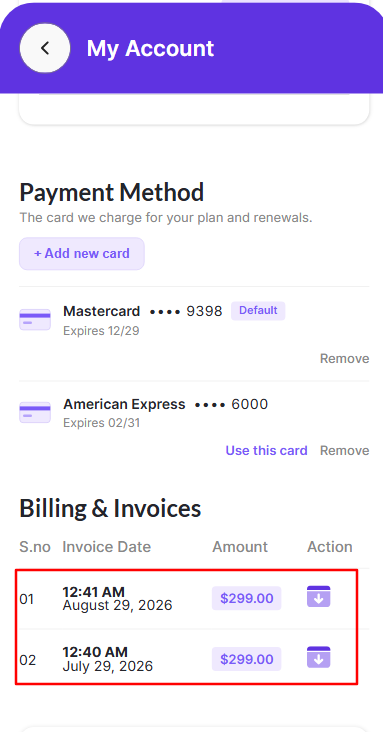
Scroll to the Billing & Invoices section below Payment Method.
Step 2 — Review available invoices
When invoices are available, the list shows the invoice date, amount, and an action for each invoice.
Step 3 — Download an invoice
Tap the icon shown under Action to download the invoice.
Confirm your billing information
Review the plan, next billing date, default payment method, and invoice amount to confirm that the billing information shown in My Account is as expected.