Before you begin
Make sure you can access your Rexpt dashboard and the team & account settings for your business.
Add a team member
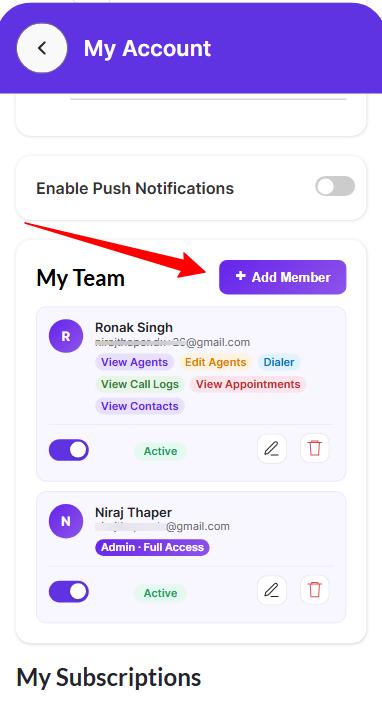
Step 1 — Open My Team
Scroll to the My Team section and select + Add Member.
Step 2 — Enter the team member details
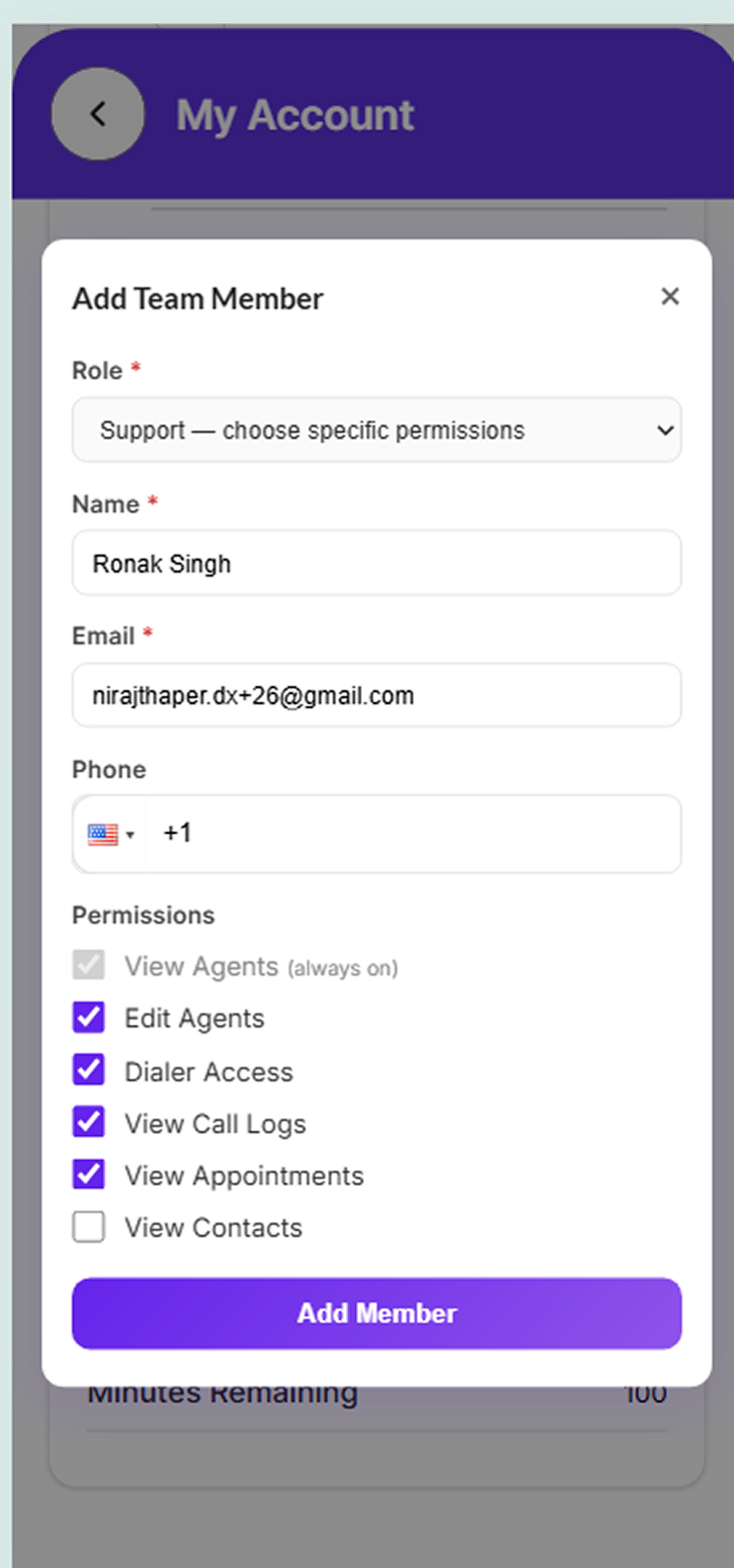
Complete the Add Team Member form. The screen includes:
- Role
- Name
- Phone(optional)
Step 3 — Choose permissions
Select the permissions the team member should receive. The available permissions shown in the current UI include:
- View Agents (view only)
- Edit Agents
- Dialer Access
- View Call Logs
- View Appointments
- View Contacts
Step 4 — Add and confirm the member
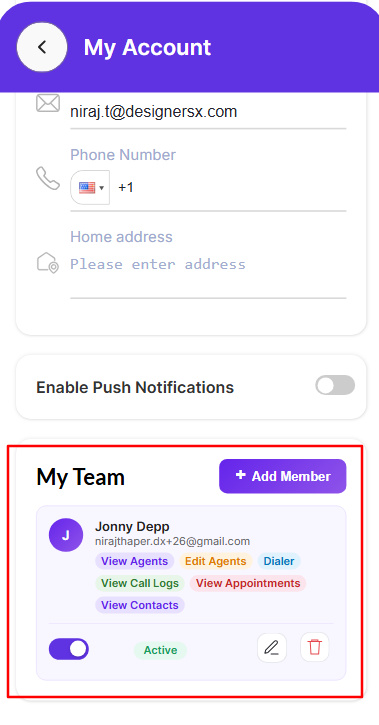
Review the information and permissions, then select Add Member. Return to My Team and confirm that the new member appears with the expected permissions and status.
Additional Information
There are two roles available currently:
- Admin: This role type has the same access as the account owner
- Support: This role has limited access, and the account owner can give them access as per their preference.
- You can also edit and delete these by clicking on the respective icons shown in this section.