Before you begin
Make sure your AI Receptionist has handled at least one call if you want to view call records.
Open Call History
Use Call History to review your AI Receptionist’s call activity in one place. You can narrow the list by date, agent, sentiment, lead type, or channel, export call data, and open individual calls for more detailed information.
Step 1 — Open Call History
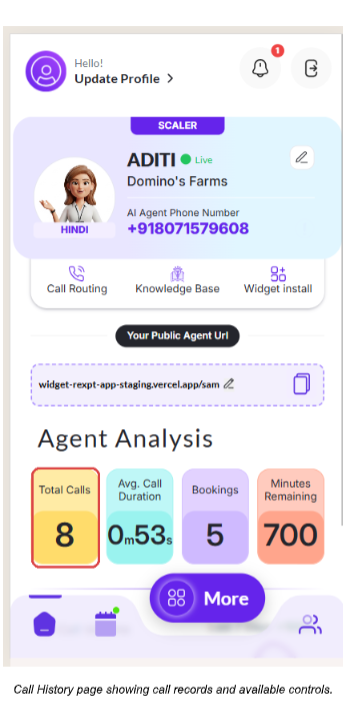
From your Rexpt dashboard, select the Total Calls card to open the Call History page.
Step 2 — Review the Call History page
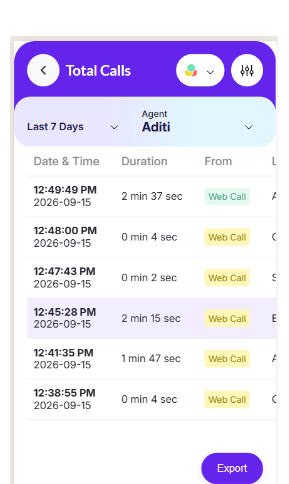
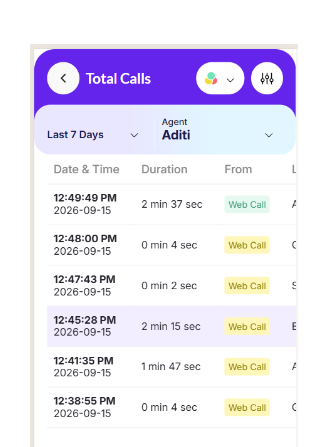
The Call History page displays call records with information such as date and time, duration, source, lead type, and sentiment. Use the available controls at the top to filter the records or use Export to download call data.
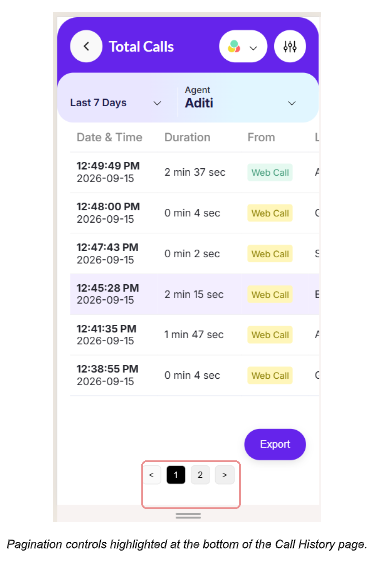
Pagination
Use the pagination controls at the bottom of the Call History page to move between pages of call records.
Filter Call History
Use filters when you need to find specific calls instead of reviewing the entire call history.
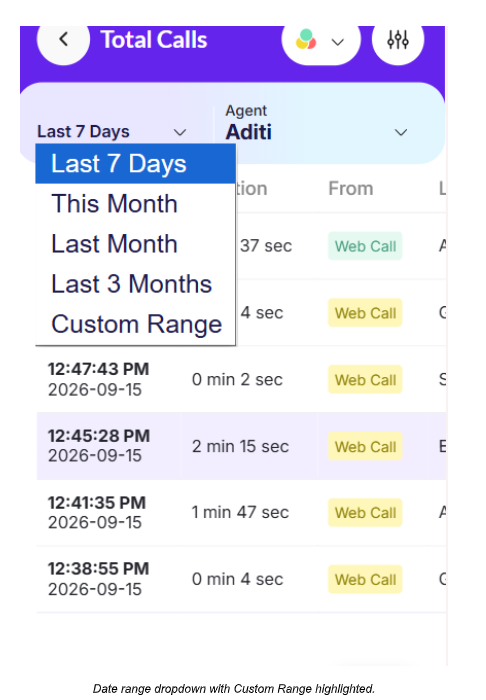
Step 1 — Filter by date
Open the date range dropdown. You can choose a predefined range such as Last 7 Days, This Month, Last Month, or Last 3 Months. Select Custom Range when you need a specific date range.
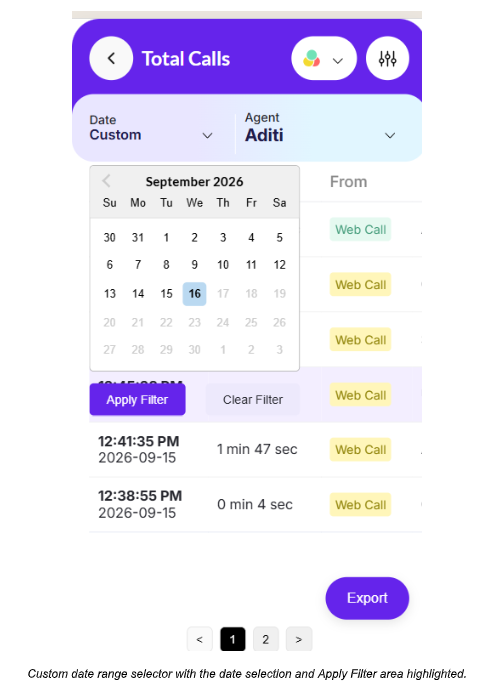
Step 2 — Select a custom date range
Choose the start and end dates in the calendar, then select Apply Filter to view calls from that period.
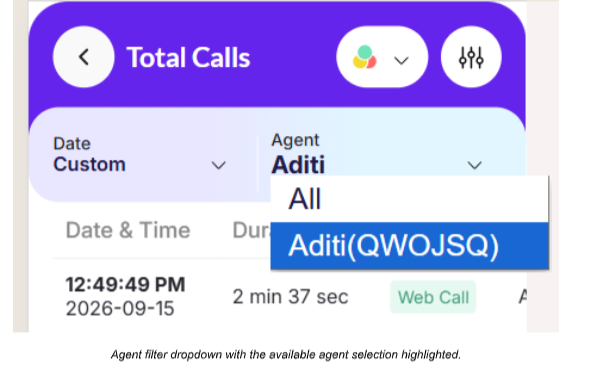
Step 3 — Filter by agent
Open the Agent dropdown and select a specific AI Receptionist, or choose All to view calls from all agents.
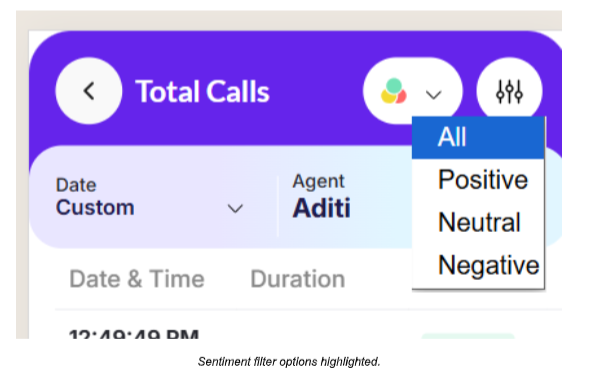
Step 4 — Filter by sentiment
Use the sentiment filter to show calls marked All, Positive, Neutral, or Negative.
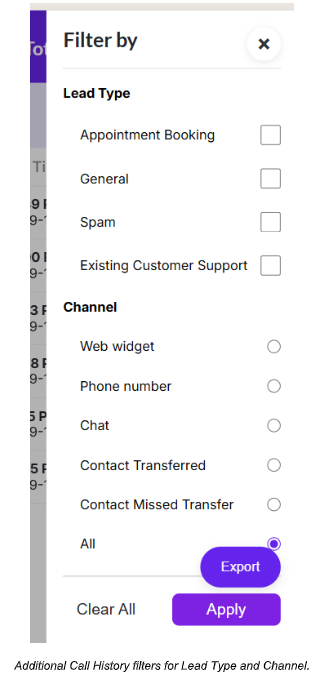
Step 5 — Use additional filters
Open the filter panel to narrow calls by Lead Type and Channel. Select the required options and choose Apply.
- Lead Type includes General, Spam, Existing Customer Support, and Appointment Booking.
- Channel includes Web widget, Phone number, Chat, Contact Transferred, and Contact Missed Transfer.
Export Call History
Export call data when you need a separate copy of your call records for review, reporting, or analysis.
Step 1 — Start an export
Select Export in the bottom-right corner of the Call History page.
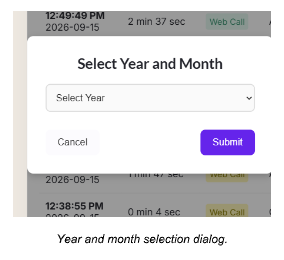
Step 2 — Select the year and month
Choose the required year and month, then select Submit to request the call data for that period.
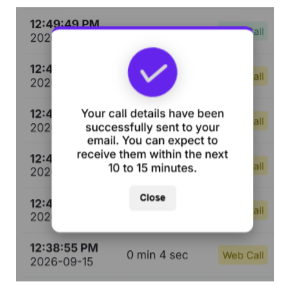
Step 3 — Confirm the export
After submitting the export request, Rexpt displays a confirmation message that the call details have been successfully sent to your email. The exported details can be expected within the next 10 to 15 minutes.
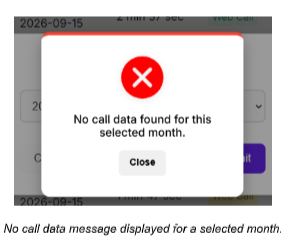
If no call data is available
If the selected month has no call records, Rexpt displays a message stating that no call data was found for the selected month.
View Call Details
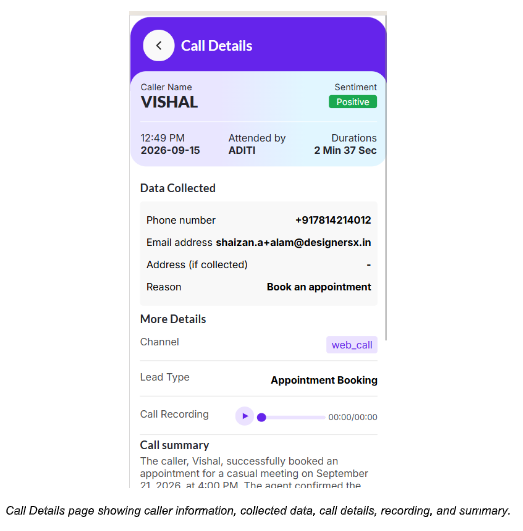
Open an individual call when you need to understand what happened during the conversation, review information collected from the caller, or check the call summary, recording, and transcript.
Step 1 — Open a call record
From Call History, select any call record to open its Call Details page.
Step 2 — Review the call details
The Call Details page provides caller information and the agent that handled the call. You can also review data collected from the caller, channel, lead type, call recording, and the call summary.
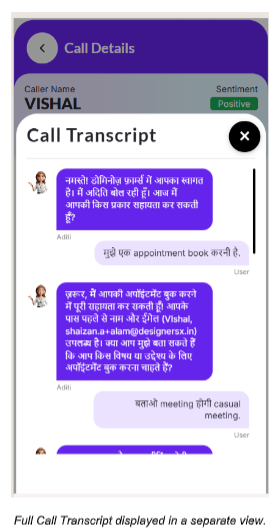
Step 3 — View the full transcript
In the Call Transcript section, select Show Full Transcript to open the complete conversation.

Confirm Your Review
Confirm that you have selected the correct date, agent, or other filters when searching for calls. For individual calls, review the collected data, lead type, summary, recording, and transcript as needed.
Related Guides
- Test Your AI Receptionist
- Configure Call Triage
- Set Up Call Forwarding
- Connect Your Calendar